
Our printers come with various configuration options. These can be modified in the printer properties. Some programs like Microsoft Office also integrate the configuration options into their UI.
The screenshots on this page refer to the program-independent settings page. This can be accessed differently depending on the program. A few examples:
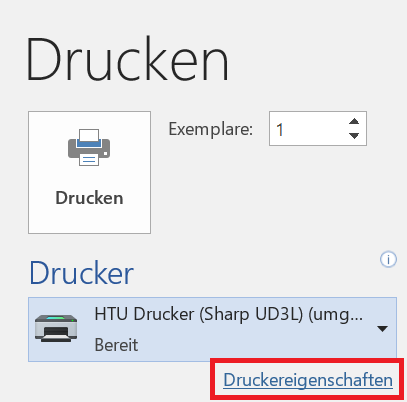
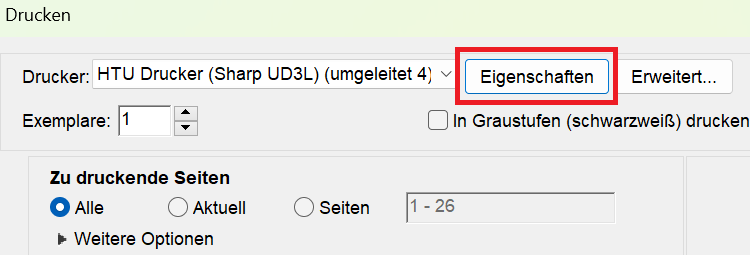
The printer settings page looks like this:
- In the upper part of the dialog, print settings from various categories can be modified
- In the lower part of the dialog, a preview is shown of which settings are currently active
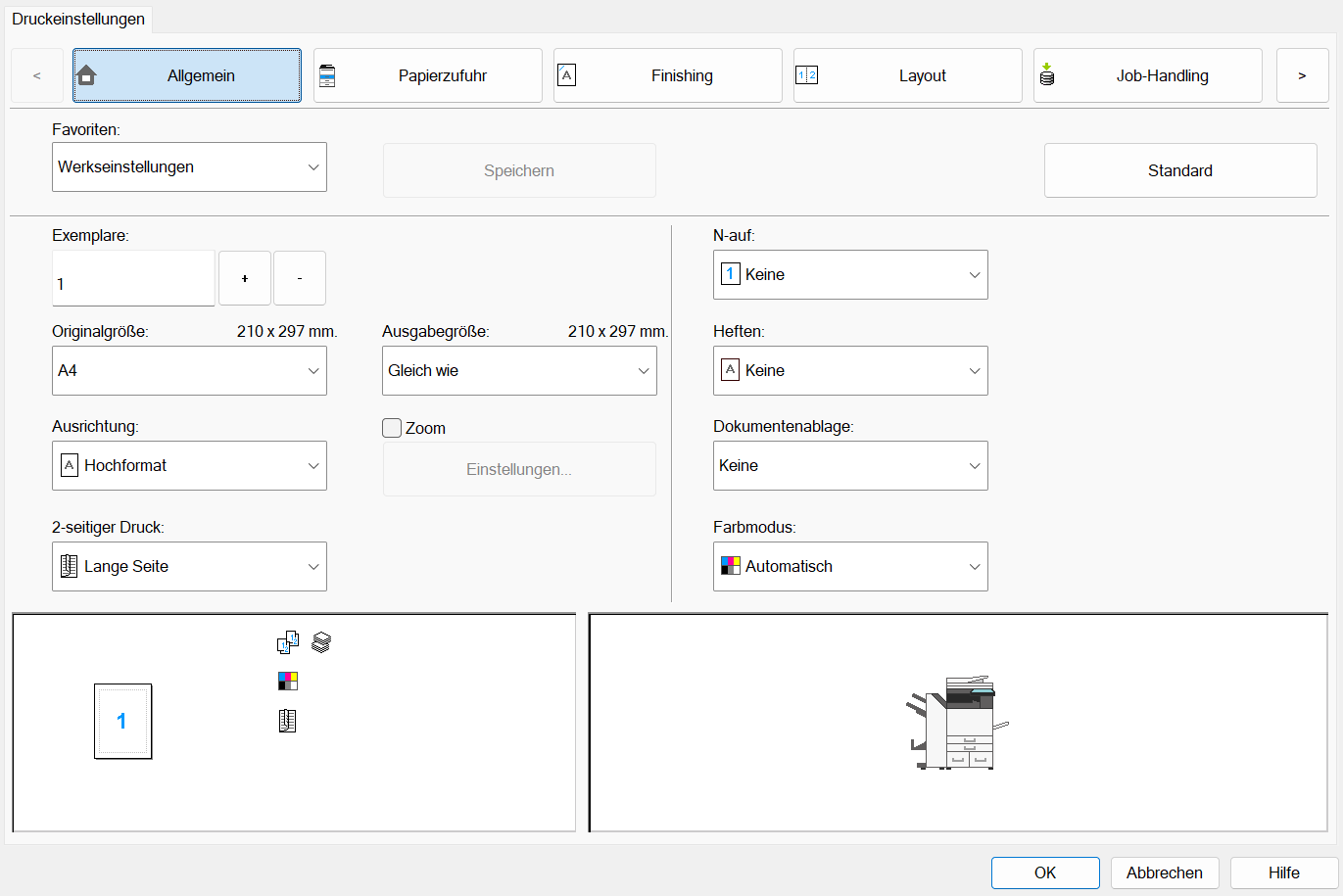
If a completely different-looking dialog appears instead of this dialog window, the printer drivers are not properly installed or not properly configured. In such a case, the printer must be set up again.
Paper Feed
The printers are equipped with paper cassettes containing A4 and A3 recycled paper. The cassettes are locked.
If you want to use your own paper, you can select Manual Feed in the “Paper Feed” tab.
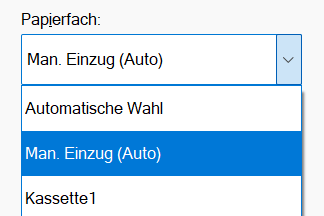
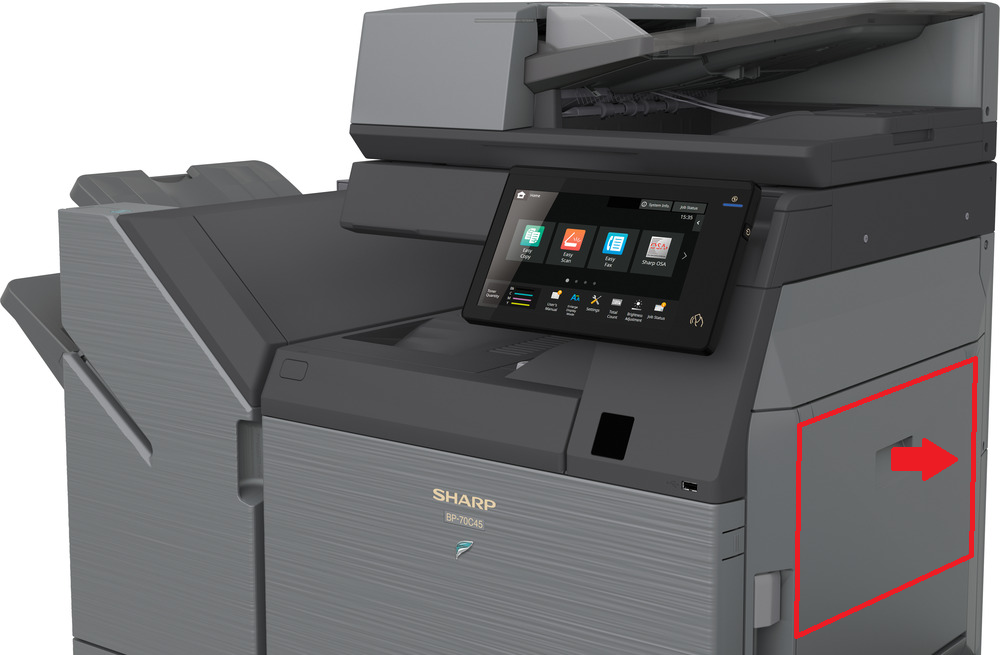
The manual feed is located on the right side. First open the flap, then insert the paper. Afterwards, the print job can be started.
Stapling, Folding & Punching
Some printers have a finisher unit. This can staple, fold, or punch the finished printed documents if needed. These options can be set in the “Finishing” tab of the settings.
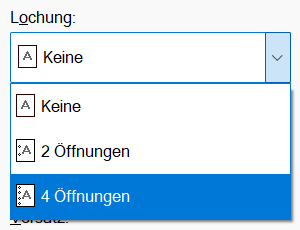
Punching
Documents can be punched with two or four holes on the left side:
Stapling
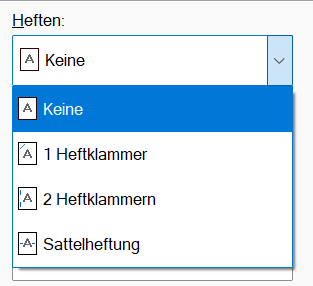
Documents can be stapled either in the corner or on the left side:
Folding
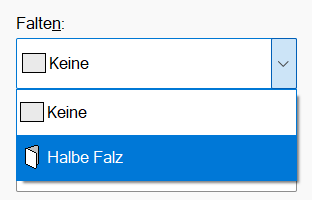
Documents can be folded in half. You can choose whether to fold inward or outward.
Saddle Stitching
Saddle stitching combines stapling and folding to print booklets. When selecting the “Saddle Stitching” option, folding is automatically activated.
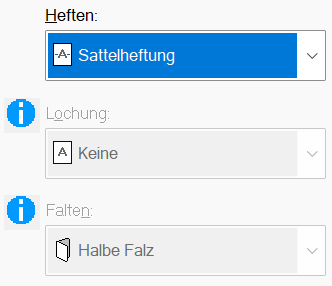
Saddle stitching works with the A3 paper cassettes or with manual feed (A3 & A4)